Create, Sign and Send an Invoice
This guide walks you through creating an invoice through to its acceptance by TTN Elfatoura.
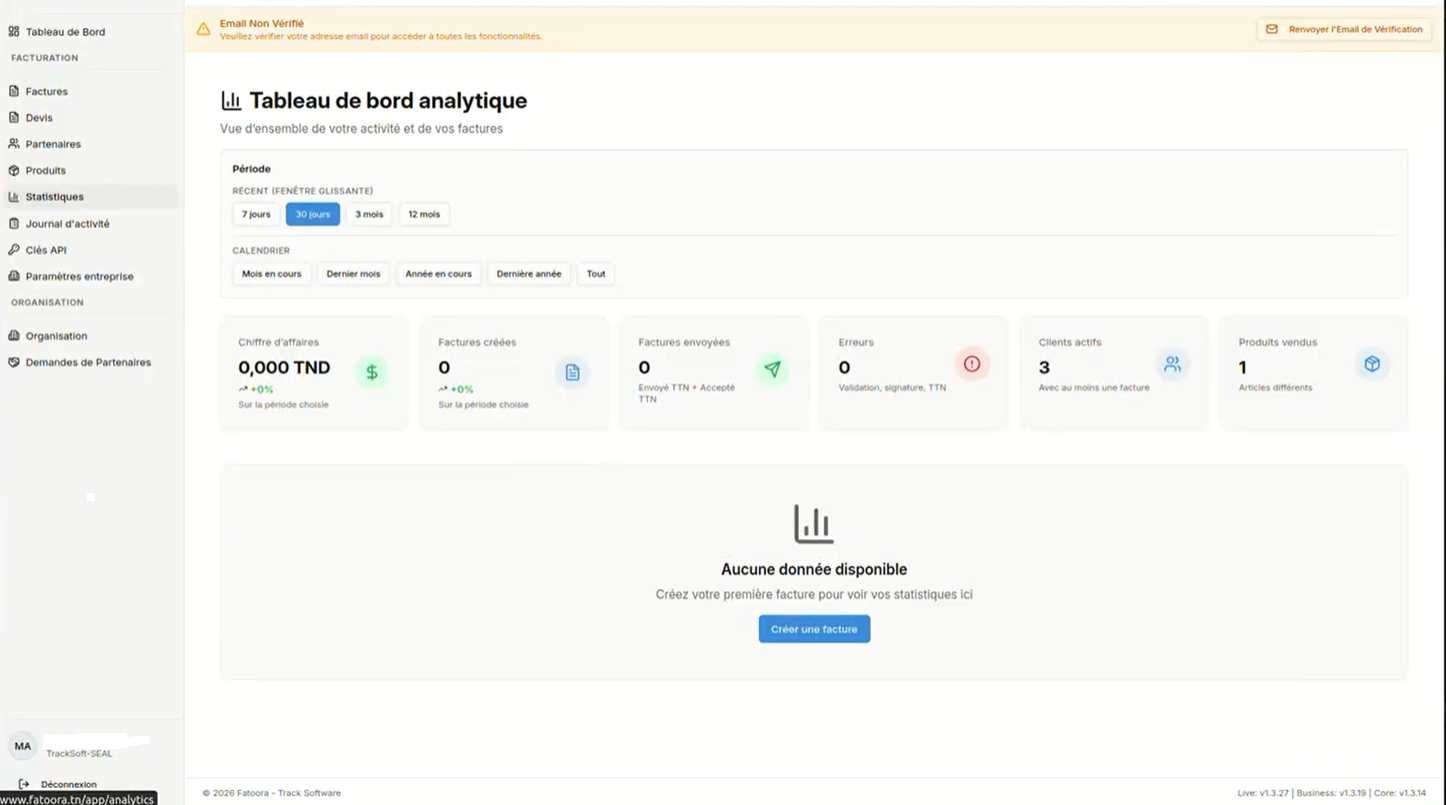
You can track your invoicing statistics (monthly quota, total, breakdown) from the portal:
Create an Invoice
New Invoice
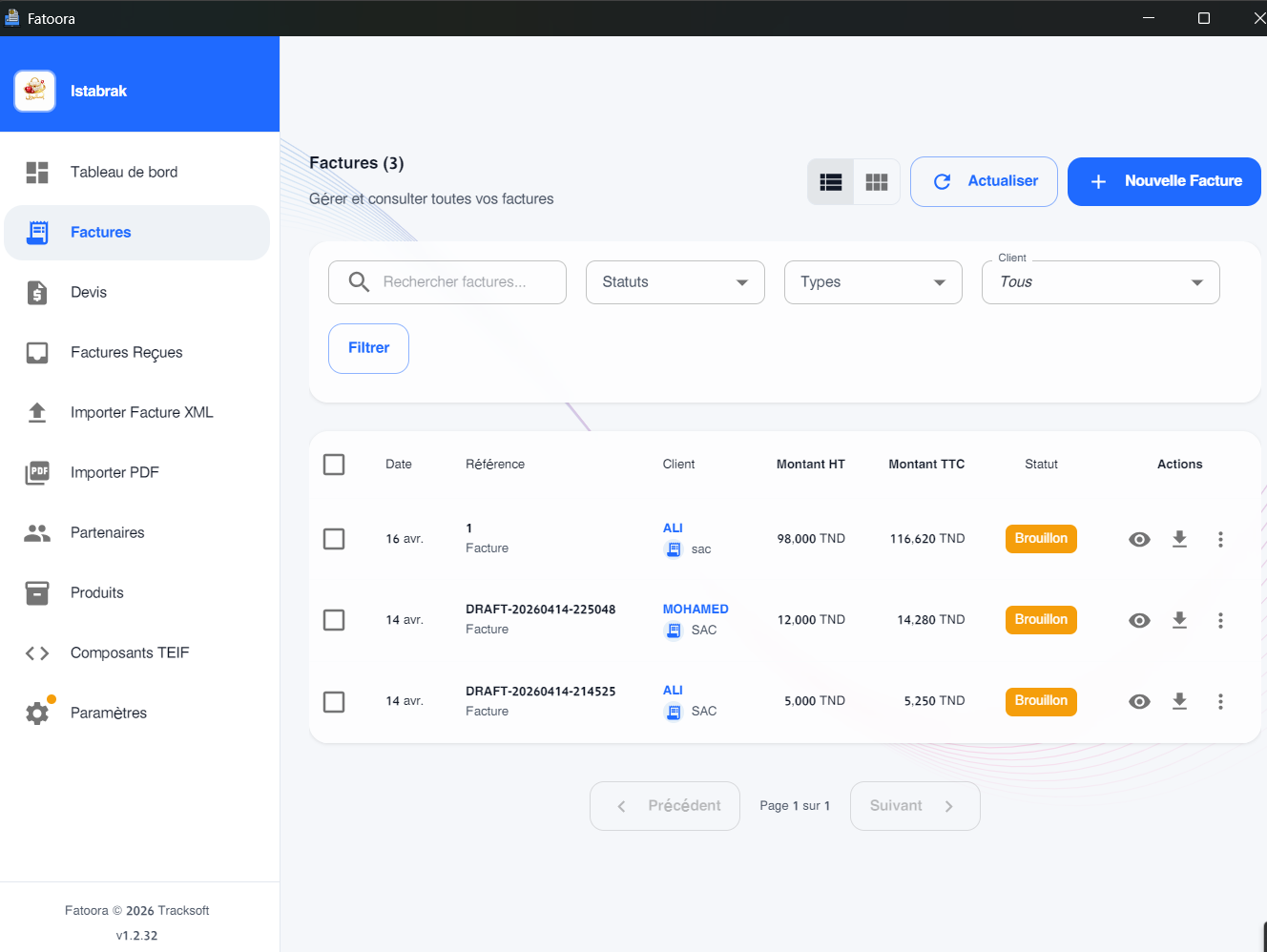
- In the main menu of Fatoora App, click "Invoices" → "New invoice"
- Select the document type:
- Invoice (I-11) — standard invoice
- Credit note (I-13) — credit note
- Debit note (I-16)
- Select the partner (customer) from the directory
Line Entry
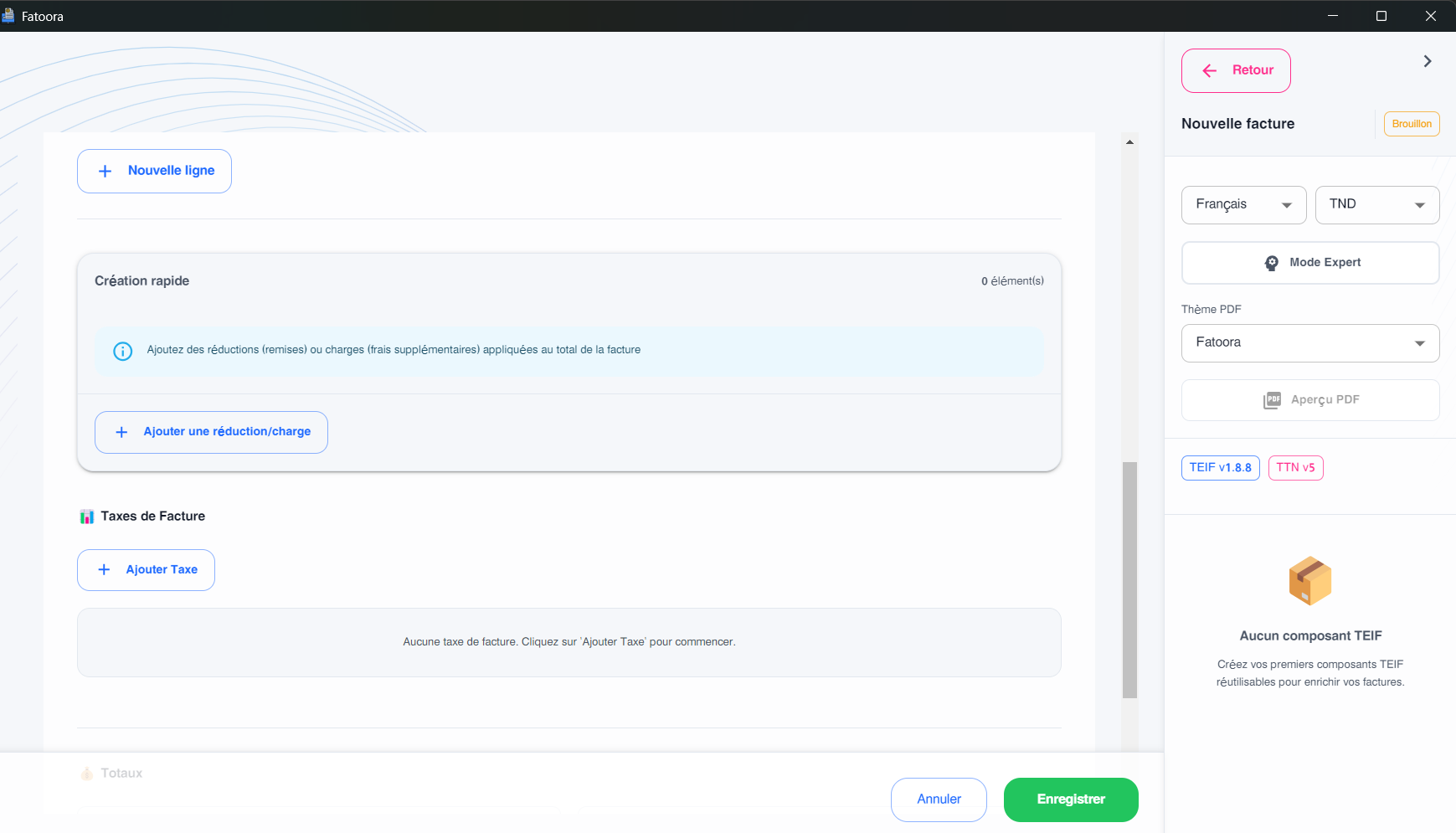
- For each line, click "Add a line"
- Select a product from the catalog or enter manually:
- Product code
- Description
- Quantity
- Unit price (excl. VAT)
- VAT rate
- Totals (excl. VAT, VAT, incl. VAT) are calculated automatically
Preview
- Click "Preview" to see the invoice rendering
- Verify all information before proceeding to signature
TEIF XML Generation
- Click "Generate XML"
- Fatoora App generates the compliant TEIF 1.8.8 XML
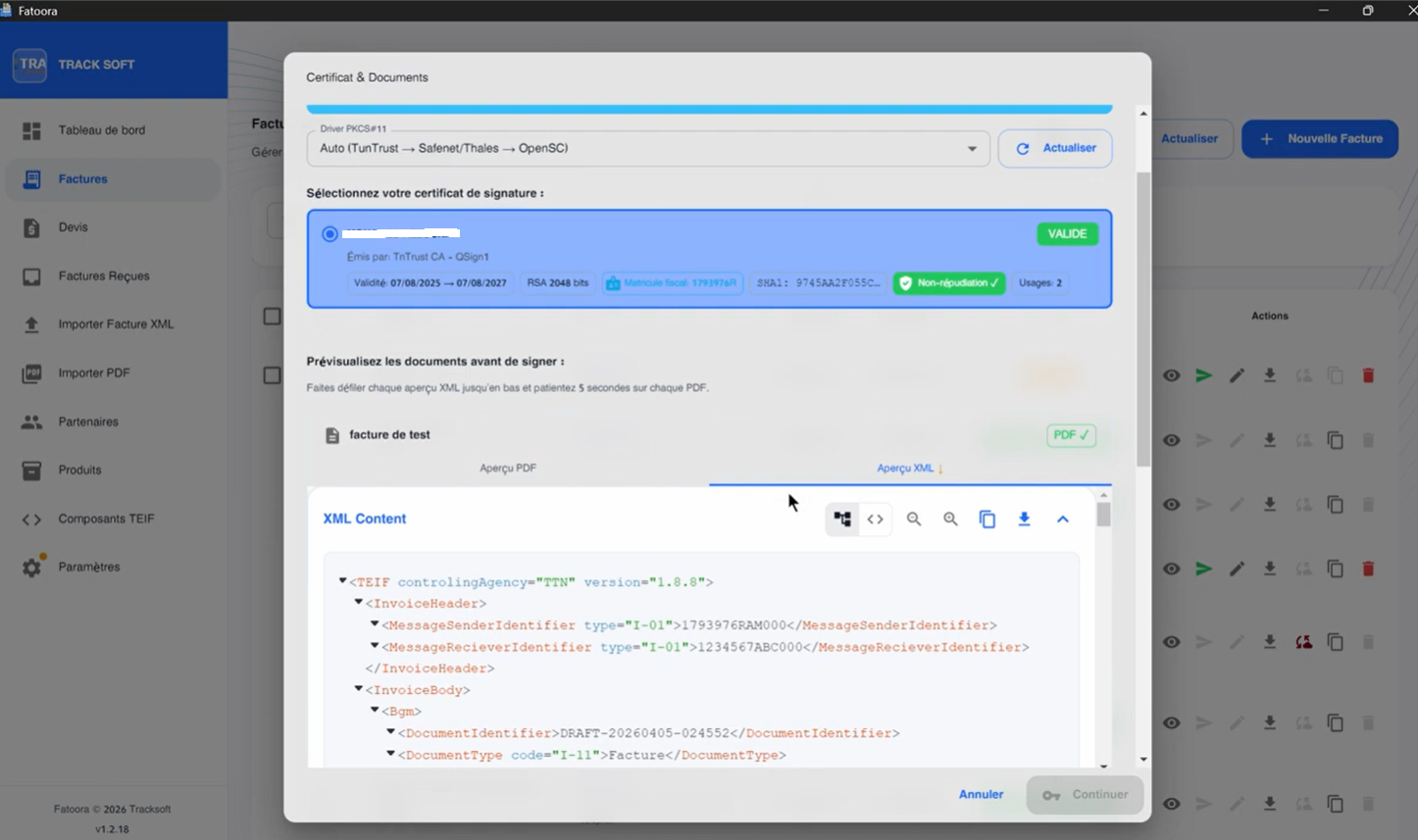
- You can check the XML via the "View XML" button
Sign and Send an Invoice
Signing Process
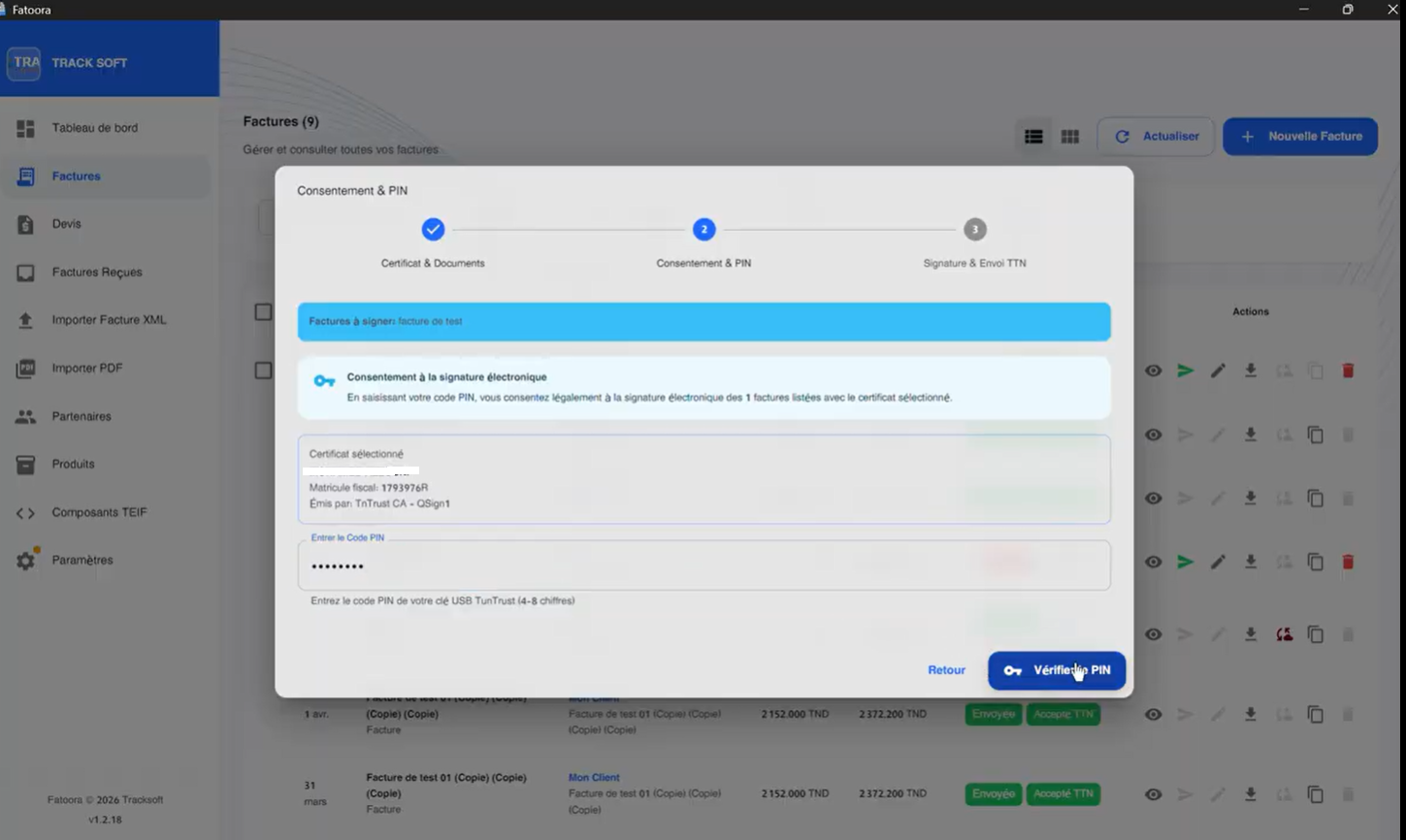
- Select the invoice(s) to sign from the list
- Click "Sign and Send"
- In the dialog box, verify:
- The selected certificate
- The invoice information
- Enter the PIN of your token
- Click "Confirm signature"
Important: Entering an incorrect PIN immediately stops the process to protect your token. PKCS#11 tokens lock after several consecutive incorrect attempts.
Signing Workflow
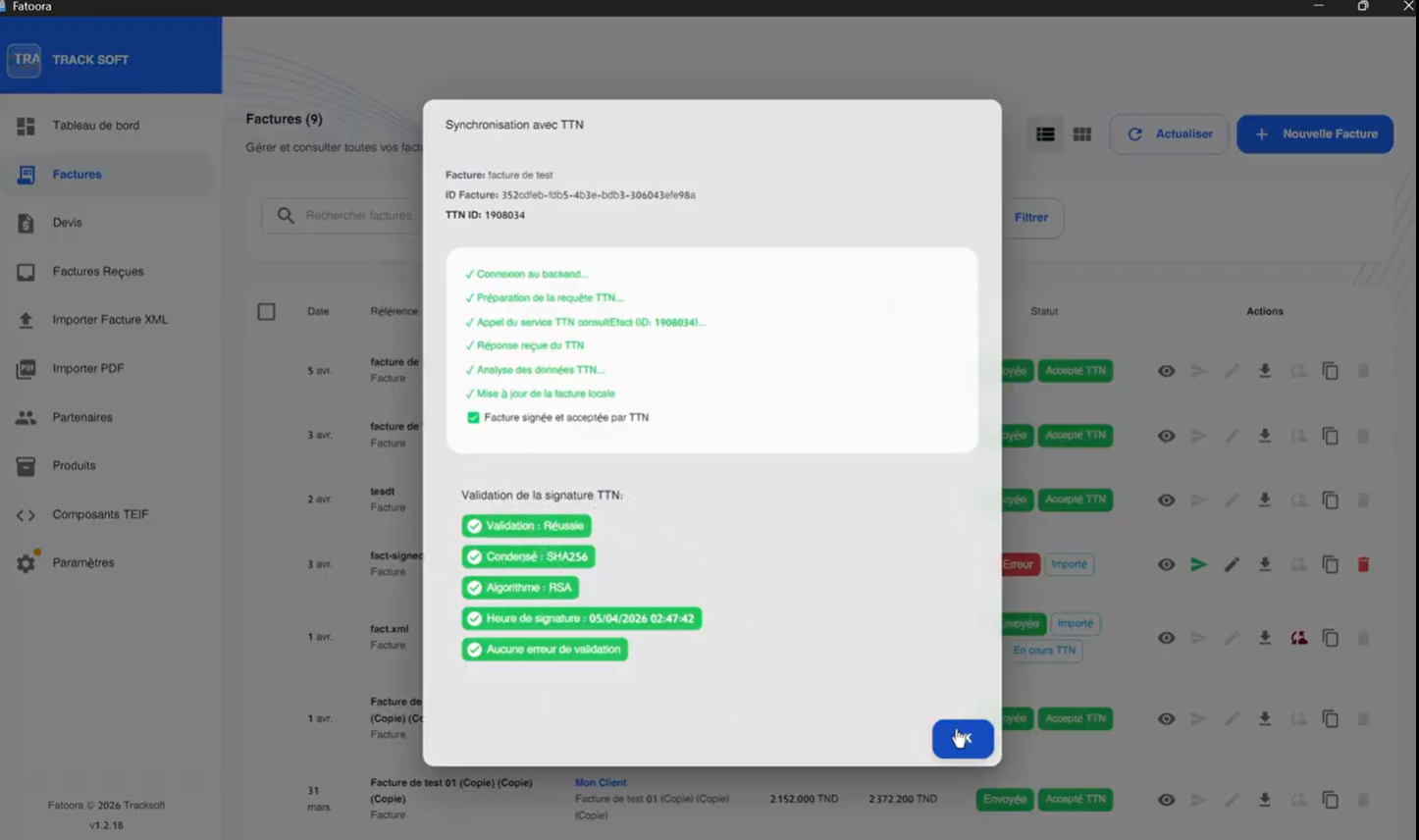
Fatoora App automatically performs the following steps:
- Opening PKCS#11 session with your certificate
- Computing XAdES digests (SHA-256)
- RSA signing via hardware token (the private key never leaves the token)
- Post-signature validation (TunTrust chain, algorithms)
- SOAP submission to TTN Elfatoura
TTN Status Tracking
After submission, the invoice displays one of the statuses:
| Status | Meaning |
|---|---|
| Processing | TTN processing in progress |
| Rejected | Invoice rejected by TTN (see reason) |
To get the final validation status, click the invoice sync icon:
- Connection to TTN
- Request validation status
- Update local database
After receiving the final status:
| Status | Meaning |
|---|---|
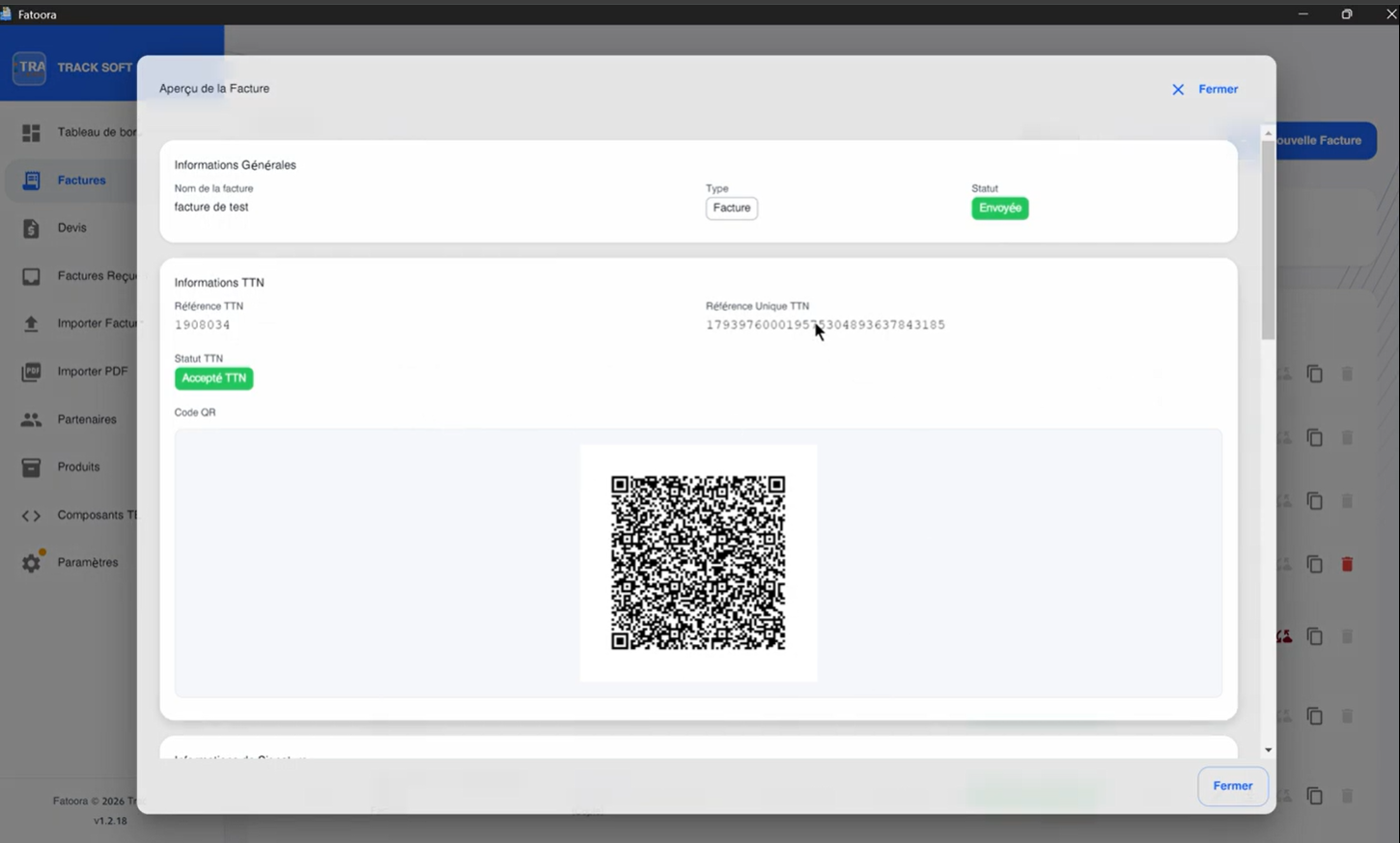
| Accepted | Invoice accepted by TTN — legal value ✅ |
| Rejected | Invoice rejected by TTN (see reason) ❌ |
Downloading Signed Documents
After signing and TTN acceptance:
- PDF: click the PDF icon on the invoice
- Signed TEIF XML: click the XML icon