Account, Installation and Login
This guide walks you through creating your account on the web portal to your first login in Fatoora App.
Part 1 — Creating an Account on fatoora.tn
Before using Fatoora App, you must create an account on the web portal www.fatoora.tn.
Registration
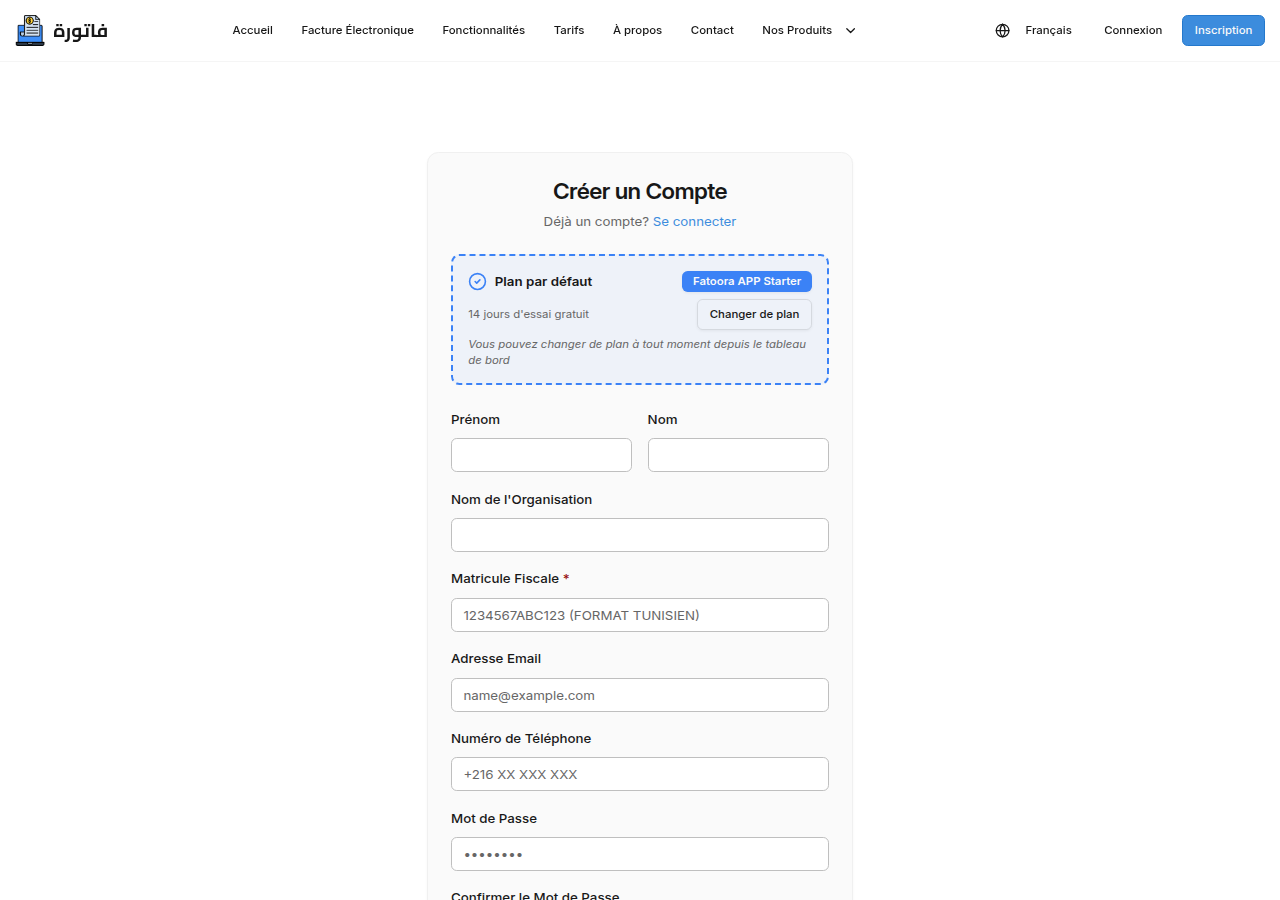
- Open your browser and go to www.fatoora.tn/register
- Fill in the registration form:
- Full name
- Professional email (will be your login identifier)
- Name of your organization
- Tax ID of your organization
- Password (minimum 8 characters)
- Click "Continue"
Plan Selection
On the next page, choose an APP plan suited to your invoice volume:
| Plan | Invoices/month | Users | Monthly price |
|---|---|---|---|
| APP Starter | 10 | 2 | 29 TND |
| APP Business | 50 | 5 | 69 TND |
| APP Max | Unlimited | 10 | 99 TND |
A −20% discount applies for annual payment.
A free 14-day trial is available with no commitment.
Organization Creation
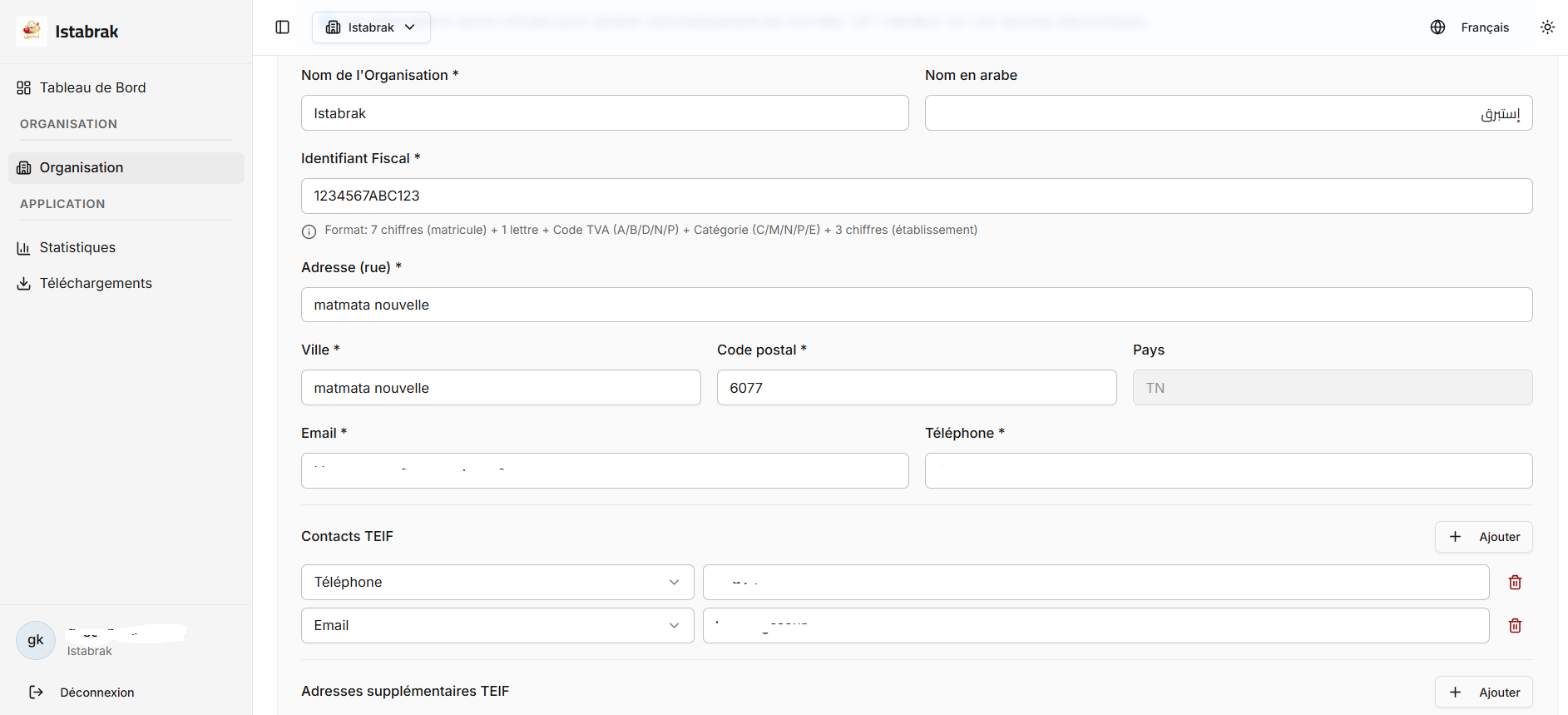
- Enter your company information:
- Company name
- Tax ID (Tunisian format)
- Postal address (street, city, postal code)
- Main activity
- This information will appear on your electronic invoices (mandatory TEIF data)
- Click "Create my organization"
Email Verification
A verification email is sent to your address. Click the link in the email to activate your account.
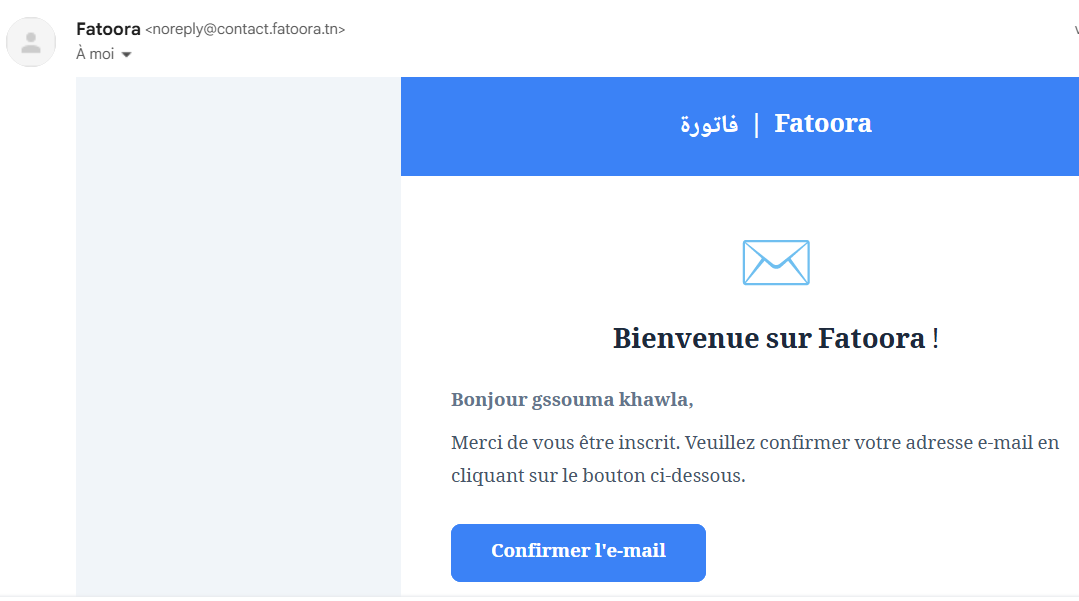
If you do not receive the email, check your spam or click "Resend verification email".
Part 2 — Installing Fatoora App
Download
Once logged into the portal, download the application:
- Log in to www.fatoora.tn
- Go to Download → Fatoora App
- Download the latest version (
.exefile)
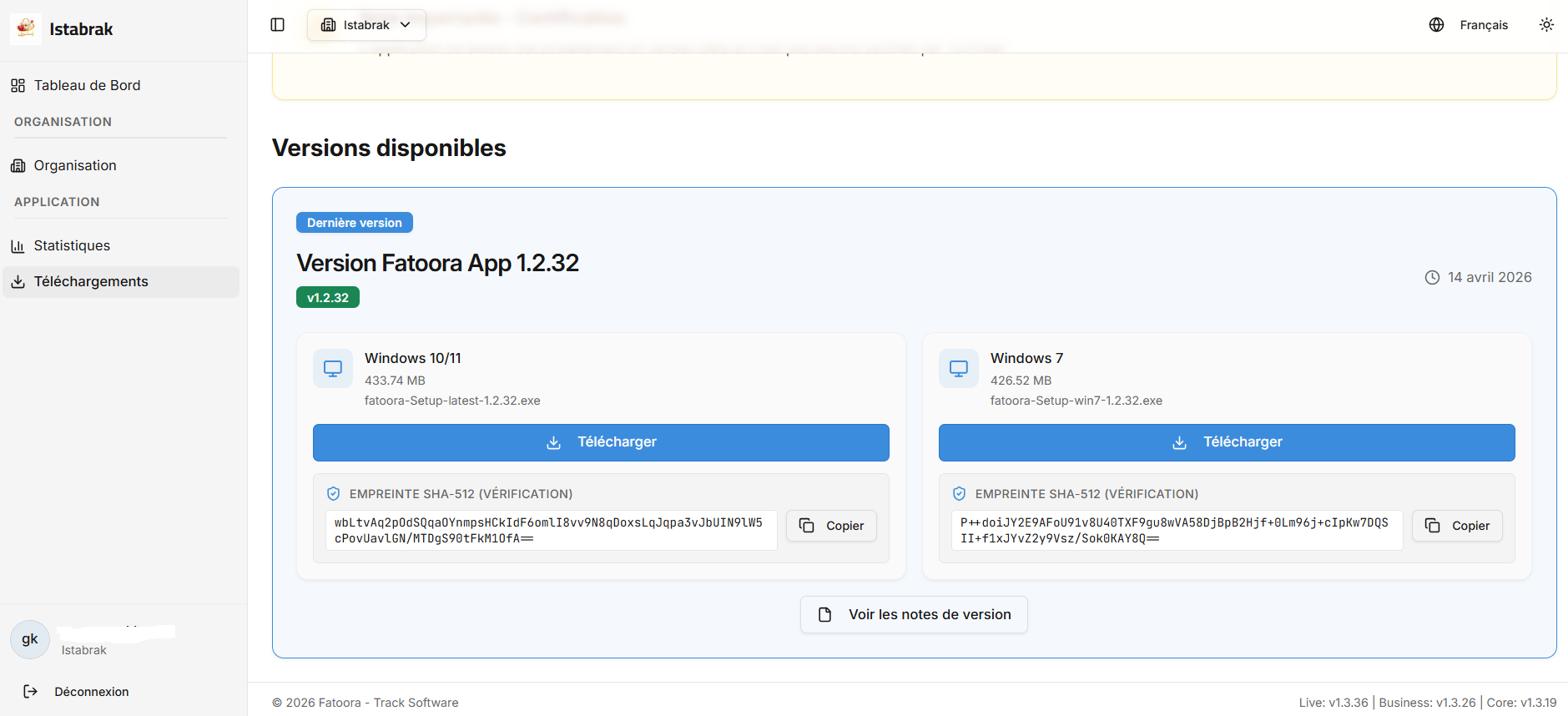
Supported operating systems:
| System | Supported |
|---|---|
| Windows 10 / 11 | ✅ Supported |
| Windows 7 | ✅ Supported |
| macOS | ❌ Not supported |
| Linux | ❌ Not supported |
Installation
- Double-click the downloaded
.exefile - Follow the installation wizard steps
- If Windows displays a SmartScreen warning, click "More info" → "Run anyway"
- Launch Fatoora App from the desktop shortcut
For a smooth installation, your system must meet the minimum requirements described in Introduction — Prerequisites.
First Launch
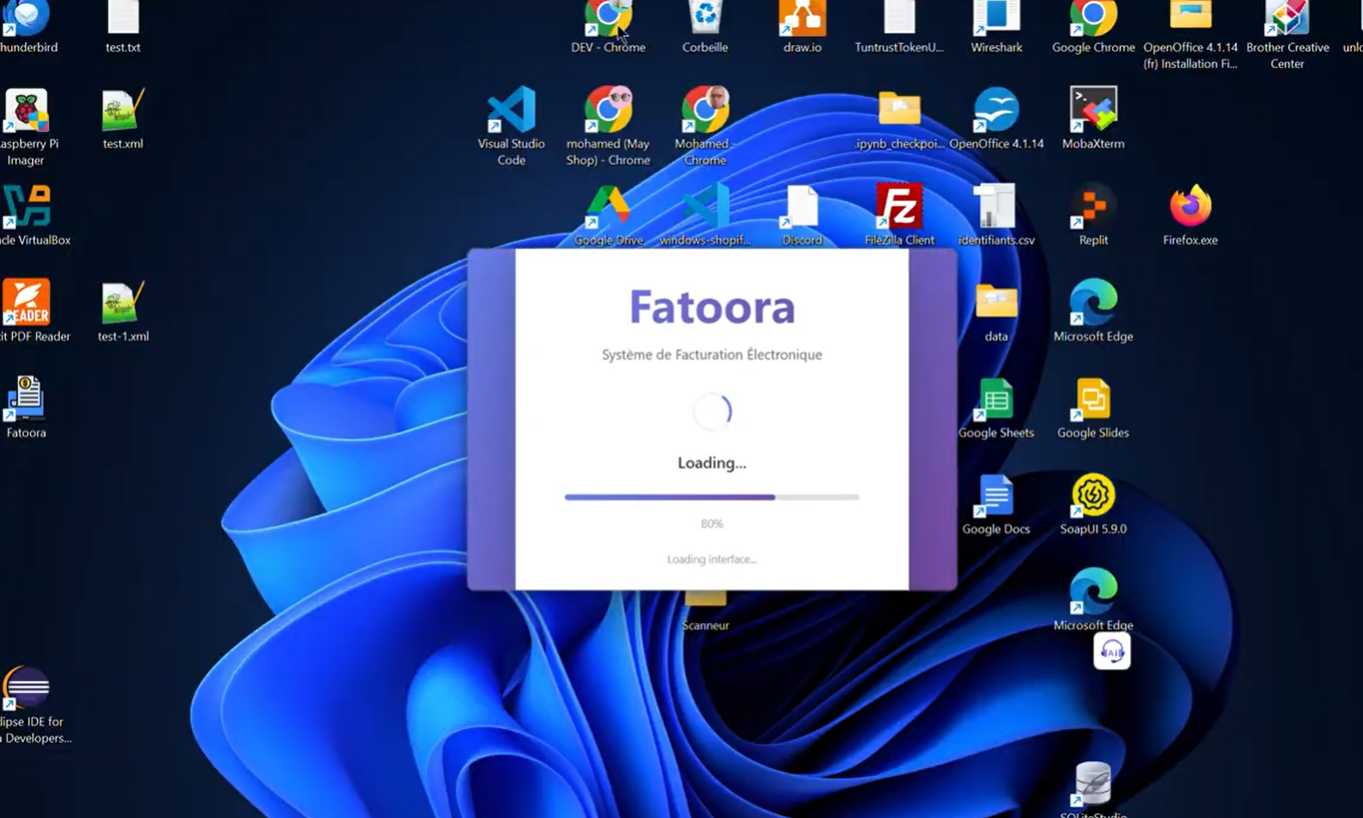
On first launch, Fatoora App:
- Automatically starts the local backend (fatooraSigner)
- Initializes the local encrypted database
- Displays the login screen
Part 3 — Logging in to Fatoora App
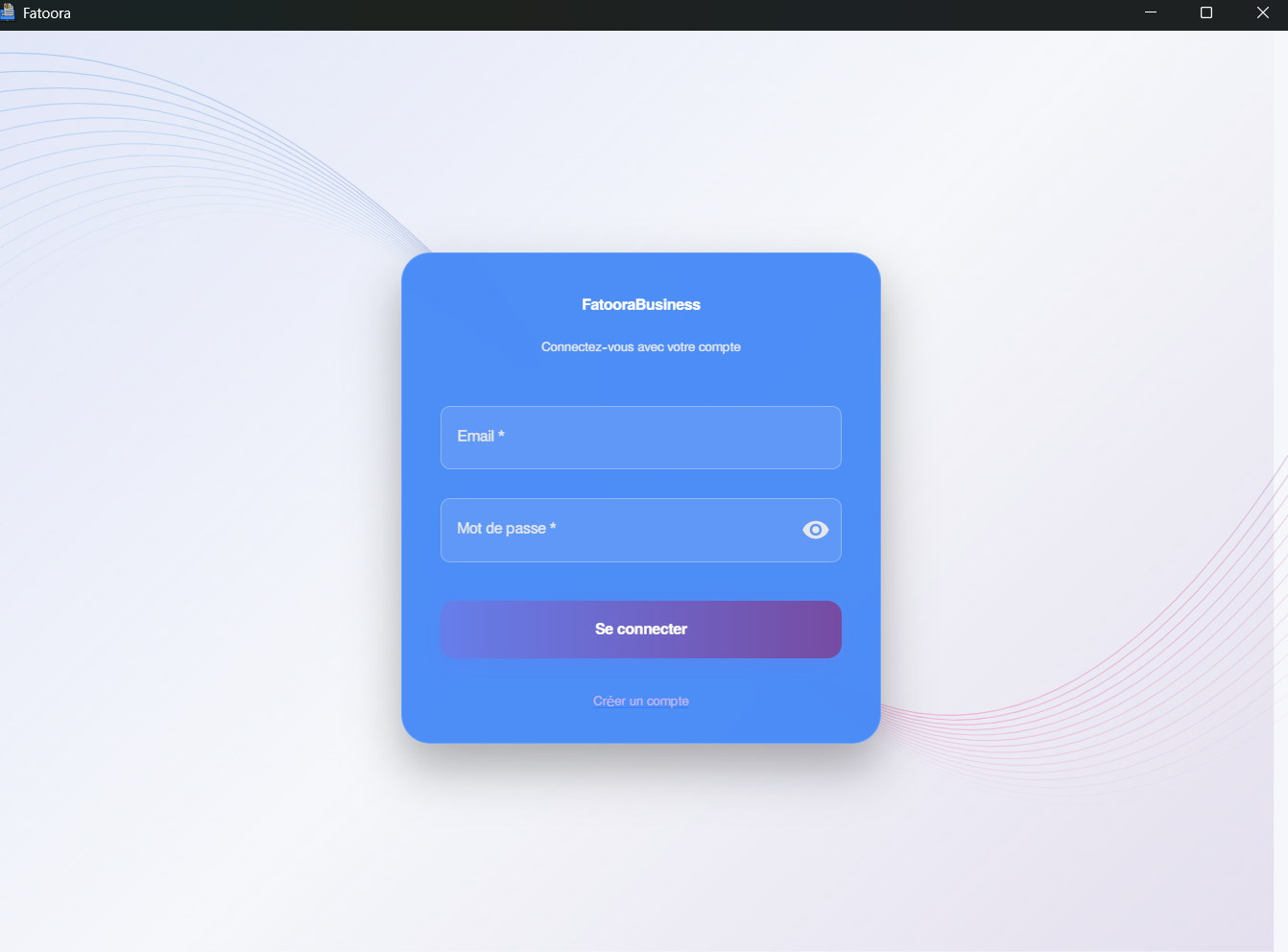
Entering Credentials
- On the login screen, enter:
- Email: your email registered on www.fatoora.tn
- Password: your password
- Click "Log in"
Fatoora App connects to the business.fatoora.tn service to verify your access rights and download your organization configuration.
Device Activation
If your plan limits the number of simultaneous devices:
- An activation code is sent by email
- Enter the code in the application
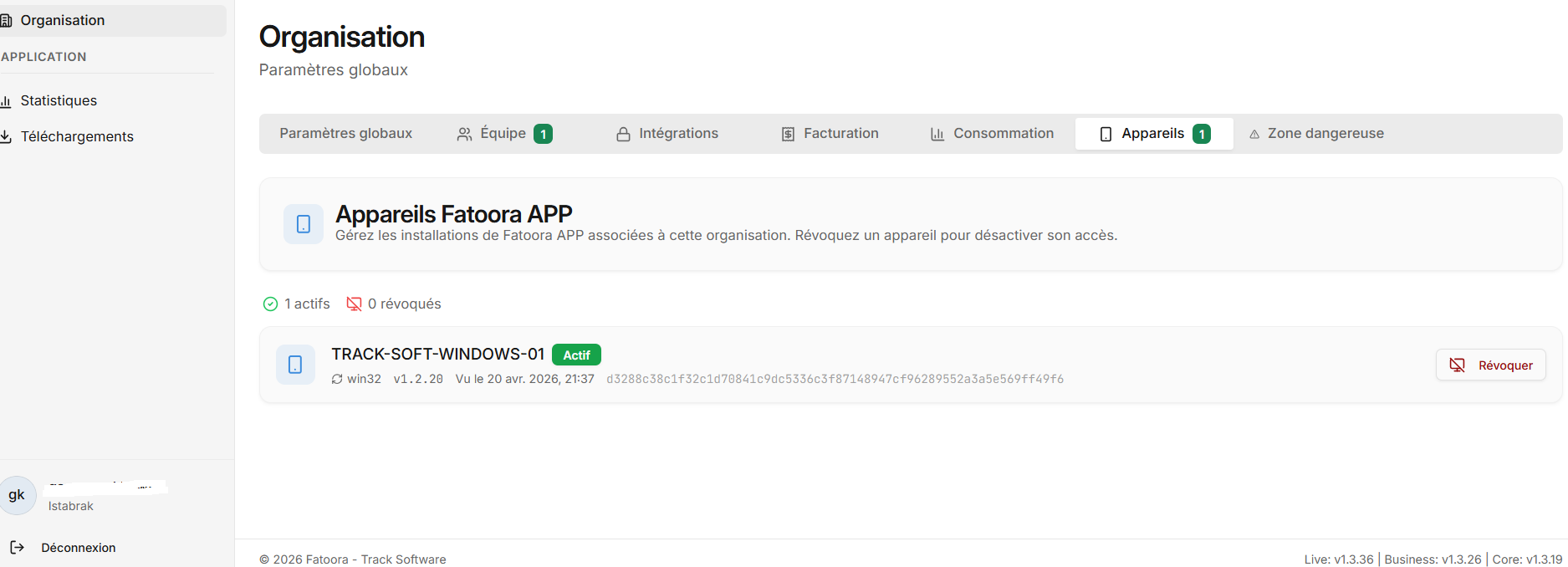
- The device is registered in www.fatoora.tn → Organization → Devices
You can manage your registered devices from the portal:
Organization Selection
If your account is a member of multiple organizations, select the desired organization from the dropdown list.
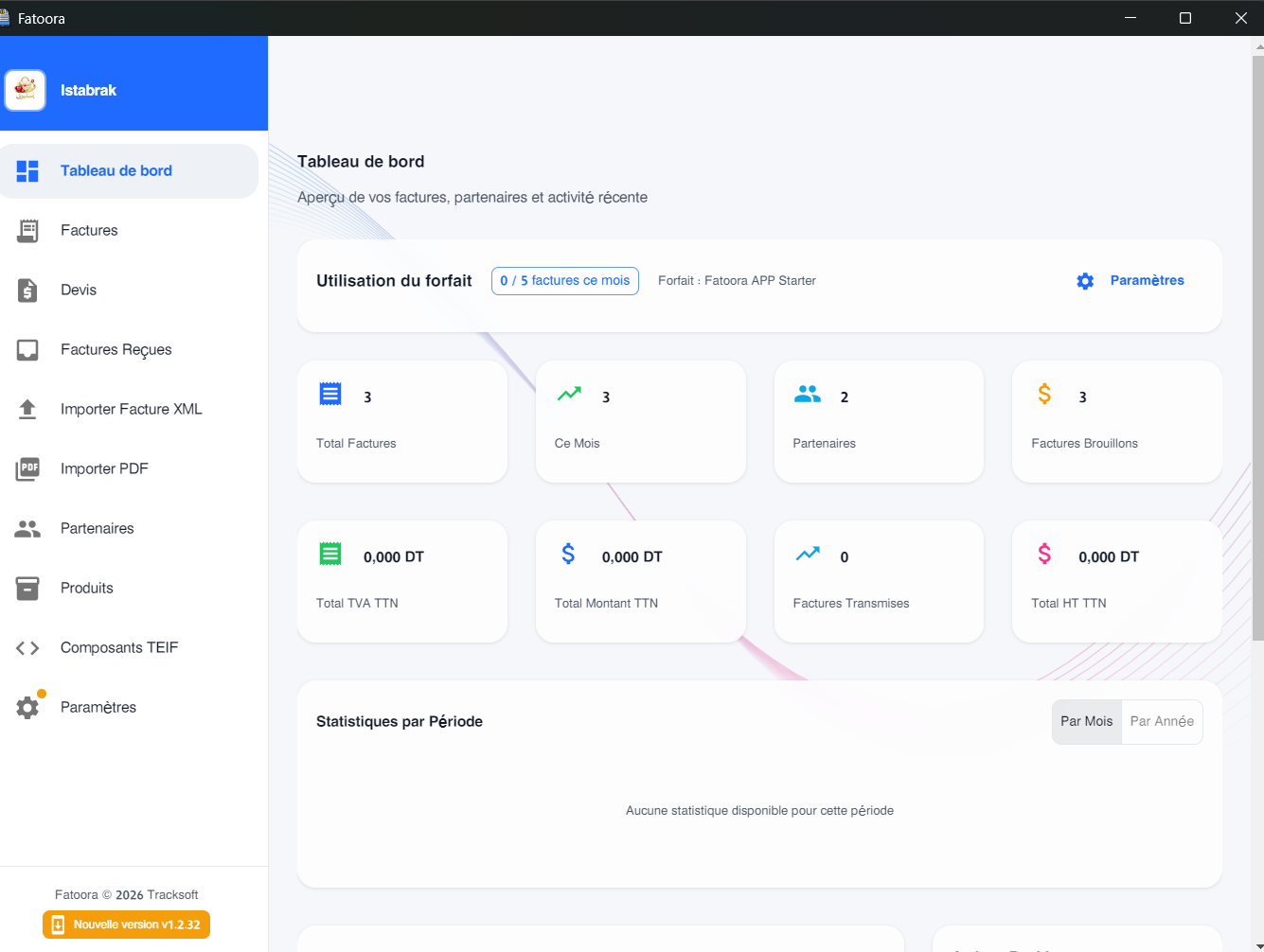
After logging in, you access the dashboard which displays your subscription, monthly quota and quick actions: